
Your mobile phone can be paired to multiple headsets and hands-free devices, but it can only be connected to one device at a time.
Following are instructions for pairing your mobile phone to the Savi W720 base.
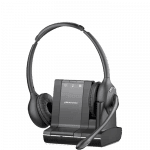 Press down and hold Bluetooth Pairing Button (see picture) for 4 seconds on Savi base until Bluetooth Indicator LED (see picture) flashes red and blue. The base will remain in this mode for 10 minutes. If it goes off, you will need to press it again.
- Place Bluetooth mobile phone into search mode. Select SAVI 7xx from the list of found devices.Phones Have Different Menus to Select from, for example:
- iPhone: Settings > General >Bluetooth > On (starts the search for devices)
- BlackBerry® smartphone: Settings/options > Bluetooth: On > Search for devices
- Android™: Settings > Wireless & Networks > Bluetooth: On > Scan for devices
- See your phone’s user guide for more information.
- If prompted by mobile phone, type 0000 as passcode. Bluetooth Indicator LED on base will turn solid blue when base has an active connection with mobile phone.
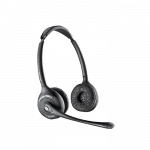 While wearing headset, short press Base Mobile Button (see picture).
- Dial test call from mobile phone.
- End call by pressing headset Call Control Button (see picture) on your Plantronics Savi W720.
Despite pressing down and hold Bluetooth Pairing Button for 4 seconds on Savi base, the base doesn’t flash red, it remains green. Have trying unplugging everything as per other replies but doesn’t fix it. Any other ideas to get pairing to work? Thanks
Try unplugging the Savi from power for 30 seconds. This will reset the unit and hopefully resolve any issues.
I used to have my iphone paired to the Plantronics W720 Bluetooth but it suddenly stopped working. I click forget this headset and try to pair again and now it does not show up at all. What can I do to resolve this?
Try unplugging the power to the W720 for 30-60 seconds. Often re-cycling the power will reset the unit and allow connections to work again.
I’m having the same trouble pairing the Savi 720 with my mobile phone-Despite pressing down and hold Bluetooth Pairing Button for 4 seconds on Savi base. How can i proceed to re-initialise bluetooth pariring ?
Hello,
Despite pressing down and hold Bluetooth Pairing Button for 4 seconds on Savi base, the base daesn’t flash ank remain green…
How can i proceed to re-initialise bluetooth pariring ?
Regards.
Gilles
Try unplugging the unit from power for 30 seconds. It may need to re-set itself. You can also try removing the Savi headset from your phone profile and try pairing as if a new device.