
Following are instructions for pairing your mobile phone to the Savi W740 base.
1) Press down and hold Bluetooth Pairing Button (see picture) for 4 seconds on Savi base until Bluetooth Indicator LED (see picture) flashes red and blue. The base will remain in this mode for 10 minutes. If it goes off, you will need to press it again.
2) Place Bluetooth mobile phone into search mode. Select SAVI 7xx from the list of found devices. Phones Have Different Menus to Select from, for example:
- iPhone: Settings > General >Bluetooth > On (starts the search for devices)
- BlackBerry® smartphone: Settings/options > Bluetooth: On > Search for devices
- Android™: Settings > Wireless & Networks > Bluetooth: On > Scan for devices
- See your phone’s user guide for more information.
3) If prompted by mobile phone, type 0000 as passcode. Bluetooth Indicator LED on base will turn solid blue when base has an active connection with mobile phone.
4) While wearing headset, short press Base Mobile Button (see picture).
5) Dial test call from mobile phone.
6) End call by pressing headset Call Control Button (see picture) on your Plantronics Savi W740.
You can also view the Savi W740 User’s Guide, page 16.
-
$0.00
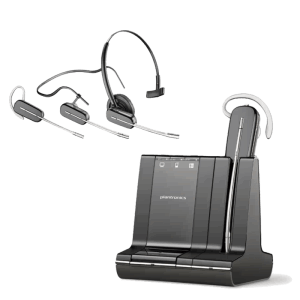 Plantronics Savi W740 Wireless Headset*** DISCONTINUED ***Read more
Leave a Reply